

The Unexpected Midnight Crash That Ruins Your Peace of Mind
A 502 Bad Gateway screen at 2 a.m. feels like your entire website just vanished. It hasn't. Nine times out of ten, your files and database are sitting untouched, and the real problem is just two internal systems failing to talk to each other. Once you understand which conversation broke down, fixing it stops feeling like guesswork.

Unmasking the Silent Mechanics Behind Gateway Failures
To understand why this error happens, we must look at how modern web servers deliver pages to your browser. Your website does not run on a single isolated computer program most of the time. Instead, it relies on a team of different software applications working together to build a single page.
Think of your main web server as a friendly waiter standing in a busy restaurant dining room. When a visitor comes to your site, the waiter takes their order and walks back to the kitchen. The kitchen represents the background programs, like database systems and script processing engines, that prepare the actual data.
A 502 Bad Gateway error means the waiter walked to the kitchen door, asked for the food, but received an invalid response or total silence from the cook. The waiter cannot fulfill your request, so he turns around and tells you that the kitchen failed to communicate properly. The problem is rarely the waiter himself; it is almost always a breakdown occurring inside the kitchen.

The Silent Relay Race Between Front-End and Back-End Systems
Modern web infrastructure uses specialized programs called reverse proxies to handle visitor traffic efficiently. These proxy programs sit on the front lines, receiving incoming requests from thousands of web browsers at the same time. They pass those requests backward to internal application servers that process the heavy website logic.
This setup acts exactly like a relay race where runners pass a wooden baton from one person to the next. The front-end server takes the request from the internet user and runs down the track to hand it off. If the second runner stumbles, drops the baton, or refuses to run, the race stops instantly.
When the front-end server receives an unreadable response or a broken packet from the internal process, it gives up. It turns toward the internet user and reports a bad gateway status code. Understanding this relay process helps us pinpoint exactly where the conversation broke down.
Overloaded Upstream Applications and Resource Exhaustion
One of the most common causes of gateway failures is simple server resource exhaustion. When too many visitors land on your website at the same moment, your background script processing engines get overwhelmed. They run out of available system memory and central processing power needed to handle incoming tasks.
When your system memory fills up completely, background workers begin queuing up in a long line. New requests sit waiting for available processing slots until the system hits its strict limit. Eventually, the background engine starts rejecting new connections or crashing under the heavy load.
When the front-end proxy tries to send another user request to a crashed processing engine, nobody answers the door. The proxy waits for a moment, receives no valid response, and throws a 502 Bad Gateway screen to the visitor. The underlying application simply ran out of room to breathe.
I used to panic and reboot my entire server every single time I saw this error screen on my project dashboard. I later realized that simply checking my active memory limits and background worker counts saved me from unnecessary headaches. Monitoring your background resources regularly keeps your systems running smoothly without sudden crashes.
Firewall Misconfigurations and Aggressive Security Blocking
Security tools are wonderful for protecting your server from malicious attacks, but they can sometimes be overly aggressive. Web application firewalls and security modules monitor the traffic moving back and forth between server layers. If a security rule is configured too strictly, it might mistake healthy internal traffic for a cyber threat.
Imagine a security guard standing at the kitchen door of our restaurant analogy. If the guard suddenly decides that the waiter looks suspicious, he blocks the waiter from grabbing the prepared plate. The waiter returns to the customer empty-handed because the security guard cut off the internal pathway.
This happens frequently when you use cloud-based security networks or local firewall modules. A sudden software update might introduce a new security rule that blocks the internal network port used by your back-end application. The front-end server tries to connect, gets blocked by the firewall wall, and displays a bad gateway message.
Want to see a real-time breakdown of how reverse proxies communicate with origin servers? Watch this quick visual guide to understand server gateway connections better!
Domain Name Resolution Bottlenecks and Internal DNS Glitches
Another hidden reason behind gateway failures involves domain name resolution inside your local server network. When a front-end proxy server receives a request, it often needs to look up the internal network address of the back-end application server. It uses local domain name services to find the correct internal address route.
If your local address directory gets corrupted or fails to respond quickly, the proxy gets confused. It attempts to send the user request to an incorrect internal address or a non-existent network location. Because no active server exists at that wrong address, the connection fails instantly.
This issue frequently pops up after you migrate your website to a new hosting environment or change your internal network settings. The front-end server relies on old, cached address records that no longer point to the active application. Until those local network address records update properly, the gateway will continue to throw errors.
Network Timeout Thresholds and Sudden Traffic Surges
Every web server has strict timeout rules built into its core configuration settings. These timeout limits exist to prevent broken or frozen background scripts from hanging open forever and consuming system power. If an upstream application takes too long to process a heavy task, the proxy cuts the connection.
When a sudden spike of real visitors hits your website, your database must work much harder to process requests. Simple database queries that usually take a fraction of a second might now take several seconds to complete. The background engine gets bogged down trying to finish these complex database tasks.
If the processing time crosses the pre-set timeout threshold, the front-end proxy stops waiting. It closes the connection to the slow background engine and immediately sends a 502 error to the user. The system chooses to show an error rather than letting the visitor wait endlessly on a blank screen.
Common Myths About Gateway Failures
- Myth: A 502 Bad Gateway error means your website files were deleted from the hard drive.
- Reality: Your files, images, and database tables are completely safe; the system is simply having a communication hiccup between internal software layers.
- Myth: Clearing your personal browser cache will always fix a 502 error instantly.
- Reality: While browser cache can sometimes store an old error page, the underlying issue almost always sits on the remote web server.
- Myth: 502 errors only happen on cheap, low-cost web hosting accounts.
- Reality: Even massive enterprise networks and popular social media platforms suffer from gateway errors when their internal service layers fail to talk to each other.
Third-Party Plugin and Module Conflicts
If you run a content management system, third-party plugins are a frequent source of gateway communication failures. Plugins add new features to your site, but they also introduce extra lines of software logic that must execute during every page load. A single badly written plugin can trigger an unexpected loop in your background environment.
When a plugin enters an infinite processing loop, it quickly consumes all available execution threads in your background application engine. The background engine stops responding to new incoming requests because it is stuck trying to finish the broken plugin task. The front-end proxy server gets no response from the busy engine and throws a 502 status code.
These plugin conflicts often occur right after an automatic update runs in the background. Two different plugins might try to use the same internal system resource at the exact same time, creating a deadlock. Identifying and isolating these software conflicts is an essential step in restoring healthy gateway communication.
Misconfigured Reverse Proxy Buffer Settings
Reverse proxy software relies on small temporary storage areas called memory buffers to hold incoming and outgoing data packets. When a back-end application generates a response, it sends the data into these buffers so the proxy can deliver it to the visitor. If the response data is larger than the buffer size, problems begin.
If your website sends heavy response headers or large cookie files, it can easily overflow the default proxy buffer limits. When the proxy receives a data header that exceeds its configured memory buffer size, it treats the response as corrupted or unsafe. It drops the connection immediately and flags the event as a gateway failure.
Site owners often spend hours looking for broken code when the actual issue is simply a tiny buffer size setting in the web server configuration. Expanding these memory buffers allows the proxy to handle larger data payloads without interrupting the user experience. It is a simple adjustment that prevents mysterious gateway errors on data-heavy web pages.
Upstream Service Crashes and Process Death
Sometimes the explanation behind a 502 error is as simple as a background software service going completely offline. Web application processing engines run as background system services on your server. If one of these background services encounters an unexpected error, the operating system might shut it down.
When a background service dies, it leaves the front-end proxy completely stranded. The proxy sends user requests to an internal network port where no active software service is listening. Because there is no active application to receive the packet, the network connection is refused instantly.
The proxy recognizes this instant network refusal as an invalid gateway response and displays the 502 error page. Modern server environments often use process monitors that automatically restart crashed background services within seconds. Setting up automated process monitoring ensures that your upstream services recover quickly without human intervention.
Network Layer Instability Between Cloud Nodes
Many modern websites do not live on a single physical machine inside a single building. Instead, they use cloud platforms where the front-end web server lives in one location while the database sits in another. These separate cloud instances talk to each other over internal virtual networks.
While cloud networks are generally reliable, small network hiccups and packet drops can happen between cloud nodes. If a brief network interruption occurs between your front-end server and your back-end database host, the gateway connection drops. The front-end server cannot reach the distant cloud node and reports a bad gateway status code.
These temporary network drops often disappear on their own after a few seconds or minutes. However, if your cloud provider experiences ongoing routing problems between data centers, your visitors will see recurring 502 errors. Keeping your web server and database application inside the same physical data center reduces network latency and eliminates cross-node connection drops.
Outdated Web Server Software and Socket Leakage
As web servers handle millions of visitor requests, they open and close temporary network connections called sockets. When a request finishes, the operating system is supposed to close the socket and free up the network port for future use. However, older or misconfigured server software can sometimes suffer from socket leaks.
A socket leak occurs when the system fails to close old connections properly after a task finishes. These dead connections linger in the background, holding onto internal network ports and system resources. Over time, the server runs out of available network sockets to handle new internal requests.
When the front-end proxy attempts to open a new socket to talk to the application server, the operating system rejects the request because no open sockets remain. The proxy cannot communicate with the back-end, resulting in an immediate 502 Bad Gateway response. Restarting the web server software clears these lingering sockets and restores healthy communication pathways.
Unresponsive Database Connection Pools
Database management systems rely on connection pools to handle multiple data requests at the same time. These pools keep a set number of database connections open and ready for immediate use by your application scripts. This design speeds up page loads because your scripts do not have to negotiate a new database connection every single time a page renders.
However, if your website receives a sudden surge of traffic, all available database connections in the pool get checked out simultaneously. New background scripts must wait in line for an existing connection to finish and return to the pool. If those active database queries run slowly, the waiting line grows longer and longer.
Eventually, the background script reaches its maximum execution time limit while waiting for a free database connection. The script dies silently without returning any output to the front-end web server. The web server receives an empty response from the dead script and presents a 502 Bad Gateway error to the waiting visitor.
Improper SSL Certificate Handling on Upstream Hosts
Security is standard across the modern web, and many site architectures encrypt traffic even on internal server networks. In this setup, the front-end proxy establishes a secure connection to the back-end application server using internal encryption keys. This ensures that data remains private as it travels between different software layers inside your host.
If the internal encryption settings on the back-end application are misconfigured, the front-end proxy will refuse to talk to it. For example, if the internal security certificate expires or does not match the local domain name, the proxy marks the connection as unsafe. The proxy intentionally breaks the connection to protect the integrity of the network stream.
Because the secure handshake failed between the internal servers, the front-end proxy cannot retrieve the requested web page data. It turns to the visitor and displays a 502 Bad Gateway error instead of showing an insecure page. Verifying that your internal security certificates are valid and properly installed prevents these silent encryption-based gateway dropouts.
How Content Delivery Networks Trigger Gateway Warnings
Content delivery networks sit between your website visitors and your actual origin server to speed up global content delivery. They act as an extra layer of reverse proxies distributed across hundreds of edge locations around the world. When a visitor requests your page, they connect to the nearest edge location rather than traveling all the way to your origin host.
If your origin server experiences a brief internal hiccup or resource spike, the edge location cannot retrieve the fresh page data. The content delivery network receives an invalid response from your origin server and displays a branded 502 error page to the user. In this scenario, the issue sits on your main web host rather than the content delivery network itself.
Sometimes, the edge network itself might experience internal routing glitches while trying to reach your origin host's IP address. If an internet service provider experiences a broken fiber line between the edge node and your server facility, the gateway breaks. Checking your origin server logs helps you determine whether the gateway failure happened locally or across the wider internet.
Proactive System Tweak Strategies to Prevent Gateway Failures
Fixing a server issue after your website goes down is always stressful. Taking proactive steps to harden your web infrastructure keeps those gateway errors from happening in the first place.
Tuning Upstream Worker Threads and Connection Limits
Your back-end application server relies on worker threads to process incoming website traffic. If your worker limit is set too low, new visitors get locked out the moment traffic increases.
Setting worker limits too high can also overwhelm your server's available memory. You must find the sweet spot where your processor handles peak traffic without exhausting system RAM.
A good starting rule: set your worker thread limit to roughly twice your CPU core count, then watch your memory usage for a week before adjusting further. Going in blind and guessing a high number usually causes more crashes than it prevents.
When tuning your settings, test your site response times under simulated visitor traffic. Sometimes, a site issue feels like a slow internet connection when it is actually a server thread bottleneck. If you notice your browser hanging on strong Wi-Fi, read about fast Wi-Fi but slow pages to troubleshoot network delay versus server delay.
Implementing Healthy Failover and Redundant Upstream Nodes
Relying on a single back-end application node creates a risky single point of failure. If that single process crashes, your front-end proxy has nowhere else to route incoming requests.
Setting up a secondary application node creates an automatic safety net for your website. When your primary node stops responding, the proxy automatically sends traffic to the healthy backup node.
You can configure active health checks on your proxy server to monitor back-end node readiness. The technical details for setting up passive and active server checks are available in the official NGINX Load Balancing documentation for system administrators. This redundancy keeps your gateway open even during unexpected application crashes.
Intelligent Caching Layers to Shield the Origin Server
Every time a visitor loads a page, your server runs database queries and builds HTML files from scratch. This heavy processing work puts unnecessary strain on your application engine.
Implementing a local caching layer stores pre-built versions of your web pages in fast system memory. The front-end proxy serves these cached pages directly to visitors without waking up the back-end application.
This shielding effect reduces the workload on your application server by up to ninety percent. Using smart automation tools to handle repetitive background tasks can streamline your entire workflow. You can learn how AI tools that cut your work time in half help automate routine digital tasks effortlessly.
Establishing Real-Time Resource Monitoring and Threshold Alerts
You cannot fix a server problem if you do not know it is happening. Setting up automated monitoring tools alerts you before a resource bottleneck turns into a total server outage.
Configure your monitoring software to send an instant notification when RAM or CPU usage crosses eighty percent. This early warning gives you time to clear temporary files or adjust worker threads before the gateway breaks.
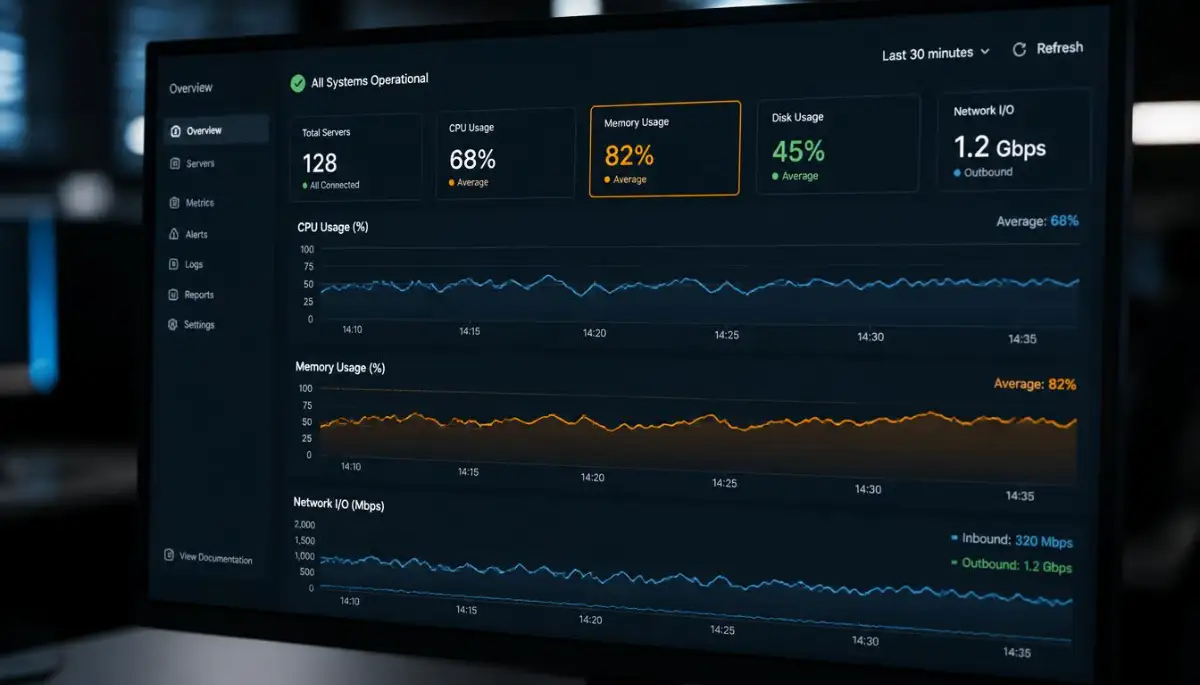
Standard network protocols govern how these status messages move across the internet. The standards established by the Internet Engineering Task Force define how gateway systems communicate status codes to client browsers. Monitoring these standard network signals keeps you ahead of potential hardware crashes.
Optimizing Memory Usage on Shared Infrastructure
Memory leaks are a quiet killer of back-end application performance over long periods. A small memory leak slowly consumes available RAM until the application process suffocates and dies.
Scheduling automatic process restarts during low-traffic hours flushes out lingering memory leaks. This simple maintenance task resets your application memory without disturbing active website visitors.
System memory management on web servers works very similarly to mobile hardware optimization. If you have ever wondered why your personal tech gets sluggish over time, explore the silent culprit behind your lagging smart devices to understand RAM management principles. Keeping system memory clean is essential for both servers and handheld electronics.
Tuning Timeouts for Long-Running Background Tasks
Web applications often perform background tasks like processing images, sending newsletter emails, or generating PDF reports. Running these heavy tasks through your main web worker threads risks triggering a gateway timeout.
If a script takes thirty seconds to process, the front-end proxy might assume the back-end application is dead. The proxy cuts the connection and presents a 502 Bad Gateway screen to the user.
Offload long-running processes to dedicated background worker queues instead of running them live during page renders. This keeps your main application threads free to respond to incoming web requests instantly.
Keeping Your Core Server Software Updated
Running outdated web server software exposes your infrastructure to known bugs and memory leak flaws. Software developers regularly release patches that fix connection handling bugs and proxy communication errors.
Updating your web server software ensures your proxy handles modern encryption protocols and buffer pools efficiently. Official documentation from the Apache Software Foundation Documentation site provides detailed guides for maintaining stable web server modules.
Always test software updates on a staging server before applying them to your live website. Testing updates beforehand prevents surprise configuration mismatches that could take your main site offline.

Dangerous Panic Traps That Escalate Server Downtime
When a website suddenly displays a 502 Bad Gateway error, panic sets in quickly. Website owners often make rushed decisions that turn a minor temporary glitch into a massive server catastrophe.
Deleting Configuration Files in a Blind Panic
One of the most dangerous mistakes is opening your server files and deleting configuration scripts randomly. People often copy commands from internet forums without understanding what those commands actually do to their system.
Deleting core configuration files can break your web server's ability to read domain names or security certificates. What started as a simple back-end timeout can turn into an unrecoverable system crash.
Always create a full backup of your configuration files before making any manual adjustments. Taking a quick snapshot of your settings ensures you can restore your original setup if a change goes wrong.
Completely Disabling Security Layers and Firewalls
When troubleshooting a gateway error, it is easy to suspect that your firewall is blocking legitimate traffic. In a moment of frustration, many site owners turn off their firewalls completely and leave them off.
Disabling your security system exposes your server to malicious automated bots and brute-force login attacks. Hackers actively scan the internet for unprotected servers and can compromise your site within minutes.
Instead of turning off your firewall entirely, check the security logs to see if specific internal IP addresses are being blocked. Clear guidelines published on the Mozilla Developer Network explain the exact technical conditions that cause 502 Bad Gateway responses. Adjusting individual firewall rules is far safer than removing your security shields altogether.
Throwing Money at Hardware Upgrades Without Diagnosing Logs
Many site owners assume that a 502 error means their current server is too weak for their needs. They immediately upgrade to an expensive hosting plan, hoping that more CPU cores will solve the problem.
If your gateway error is caused by a broken plugin or a database lock, extra hardware will not fix it. The exact same software error will continue to crash your application on the expensive server.
Always read your server error logs before spending money on hardware upgrades. The error log tells you the exact line of software logic that failed, saving you from wasting money on unnecessary hosting upgrades.
Dumping Insecure Backups on Public Folders
When trying to fix a broken server, people often generate quick database dumps and store them in root web folders. Leaving unencrypted database backups in public directories makes your sensitive user data accessible to anyone with a web browser.
Exposing private customer information creates massive legal liabilities and destroys your business reputation. You can read about the dangerous reality of free cloud storage to understand the real risks of mishandling unencrypted digital files. Store your system backups in secure, off-site locations that sit far outside your public web root.
Over-Complicating Predictive Background Scripts
Adding custom artificial intelligence scripts to handle background tasks sounds exciting, but complex code introduces more points of failure. If an experimental script crashes, it can lock up your database connection pool and trigger a gateway failure.
Keep your core server architecture as simple and clean as possible. If you are interested in how modern automated algorithms process complex data streams, check out understanding artificial neural networks simply for a beginner-friendly overview. Test all custom scripts thoroughly on isolated test environments before deploying them to your production server.
Your Action Plan for Unshakable Server Health
Maintaining a fast, reliable website does not require an engineering degree or a massive budget. By building simple maintenance habits, you can protect your site from unexpected gateway outages.
- Review Weekly Error Logs: Check your error logs for recurring timeout warnings or memory spikes before they cause a crash.
- Verify Free Storage Space: Ensure your server hard drive has at least twenty percent free space for temporary system files.
- Test System Backups: Run a quick test restore to confirm your automated backup files are clean and working properly.
- Audit Active Software Modules: Disable and remove any third-party plugins or server modules that you no longer actively use.
Taking Control of Your Web Infrastructure
Website downtime can feel overwhelming, but you now have the knowledge to diagnose and fix gateway issues calmly. You do not have to feel powerless when an error message appears on your screen.
By keeping your background resources balanced and avoiding panic-driven mistakes, you can build a resilient online presence. Start by checking your server resource limits today to ensure your systems remain healthy and strong.
I know how scary it feels when your website suddenly goes dark in the middle of the night. After fixing countless gateway errors on my own projects, I promise that taking these small preventative steps today will give you complete peace of mind tomorrow.
Common Questions About Server Gateway Errors
Does a 502 Bad Gateway error mean my website was hacked?
No, a 502 Bad Gateway error rarely means your website was compromised by an attacker. It simply indicates a temporary communication failure between two internal software applications on your web server netw